
Below are the steps for the installation of AstroGeoFit for the AstroGeoFit Workshop. If possible, participants can make these installations before the stat of the workshop. Installation for a Mac is displayed here.
Macbook install. Everything is in the documentation, and you can refer to it whenever you need additional information, but to make it more easy, we have described the essential steps below.
For a Macbook user, follow the folling steps
- Install Miniconda. This is the Python environment. In the Miniconda webpage for installation, you have the choice of graphic install or terminal install. Use the one you feel the most comfortable with. The result will be the same. Choose just one.
- Download the AstroGeoFit Package from the AstroGeo.eu website Here. Unzip the package (on a Mac, just double click on the package). You will see a astrogeofit-1.x folder. (1.0 in the example below, but now 1.1, so replace everywhere 1.0 by 1.1 below).
- From now, you need to use the terminal tool of the Mac. Open the terminal, go to the astrogeofit-1.x folder.
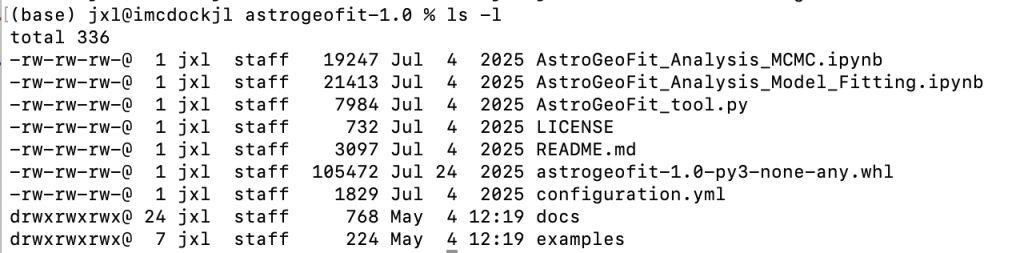
- The most simple way is to type “cd” (without the “) on the terminal prompt, and slide the astrogeofit-1.x folder in the terminal window. When you drag a file/folder from a Mac window to the terminal window, it is immediately translated into the path of this file/folder. then type “ls -l” . It should look like that
5. Next, create a virtual environment to avoid potential version compatibility issues.
In the terminal write:
conda create --name astrogeofit python=3.9Once the environment is created, activate it by writing:
conda activate astrogeofit6. Then register the “astrogeofit” environment as a jupyter kernel by typing the following command in the terminal:
python -m ipykernel install --user --name astrogeofit --display-name "astrogeofit"If errors are raised about “pip” or “ipykernel”, add two commands before the kernel registration command to fix them. Skip these 3 lines if there are no errors :
python -m pip install --upgrade pippip install ipykernelpython -m ipykernel install --user --name astrogeofit --display-name "astrogeofit"Check if you have successfully registered the kernel by typing:
jupyter kernelspec listThe list of available jupyter kernels, including astrogeofit should be displayed
Available kernels:
  astrogeofitx    /Volumes/USERS/jxl/Library/Jupyter/kernels/astrogeofitx
  trip            /Volumes/USERS/jxl/Library/Jupyter/kernels/trip
  python3         /Library/Frameworks/Python.framework/Versions/3.12/share/jupyter/kernels/python3
7. Then type this command in the terminal (adjust to the exact name of the .whl file)
pip install astrogeofit-1.1-py3-none-any.whlRun your first example. In order to limit the runtime that can be large on a full scale job, we will limit this first example to the genetic algorithm fitting part, and will not run the MCMC part. We use the configuration files stored in the “example” folder. The command is then
python AstroGeoFit_tool.py -fit -p ./examples/synthetic_data/configuration_file/configuration_synthetic_data.yml -rThe output should look like
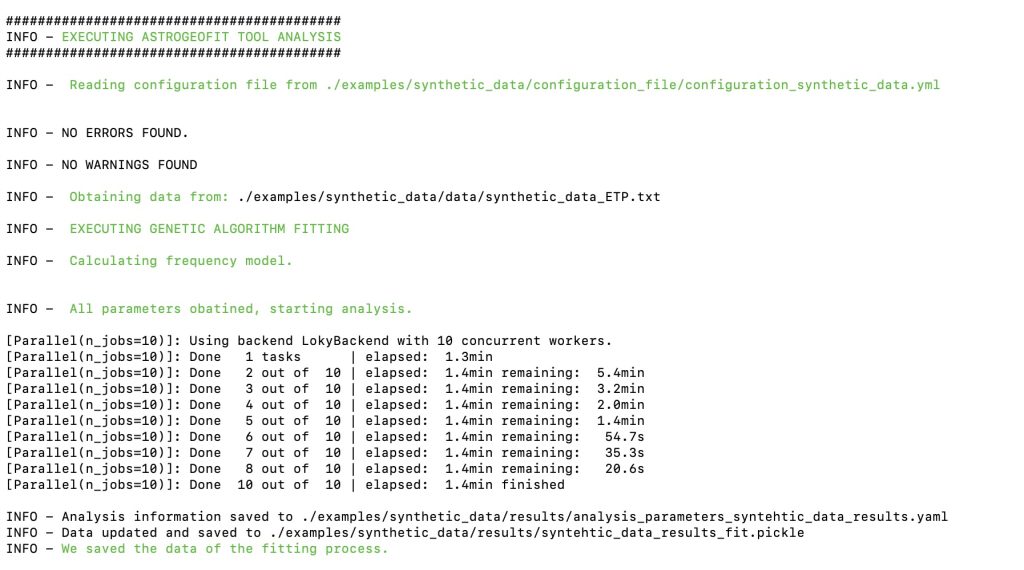
Congratulation, you have properly installed AstroGeoFit ! You have run your first AstroGeoFit job and are ready for the AstroGeoFit workshop !
To exit conda
conda deactivateNow you can go to the next step, that is the visualisation of the results : Here